Users, roles and permissions
Documentation · Getting started
Create accounts for your team, assign a role (quality manager, production manager, operator, auditor…) and customise permissions.
1. Open user management
Admin › Users: the company's accounts, with their role and status.
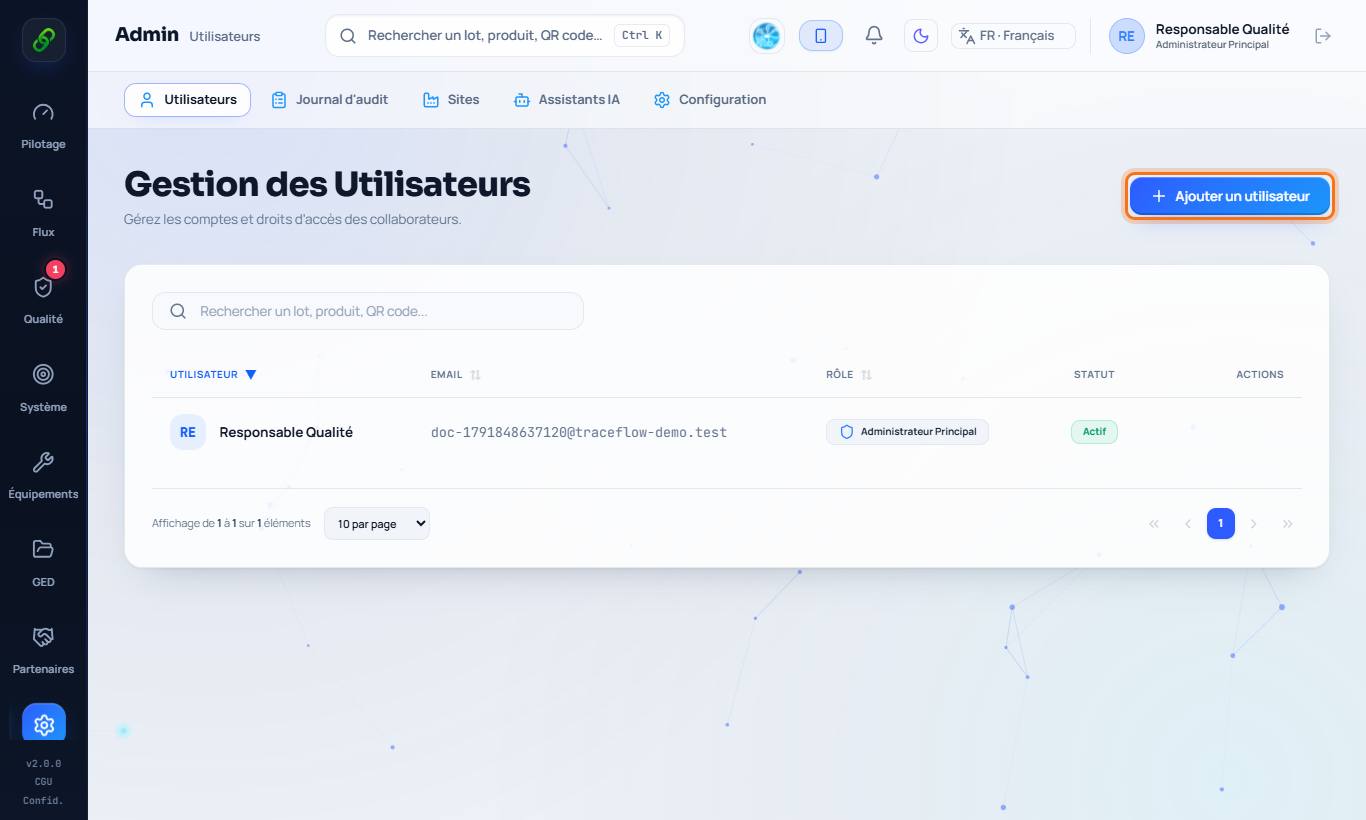
2. Add a user
Click Add a user, enter the full name, email and role, then Create the account. The person receives sign-in instructions by email.
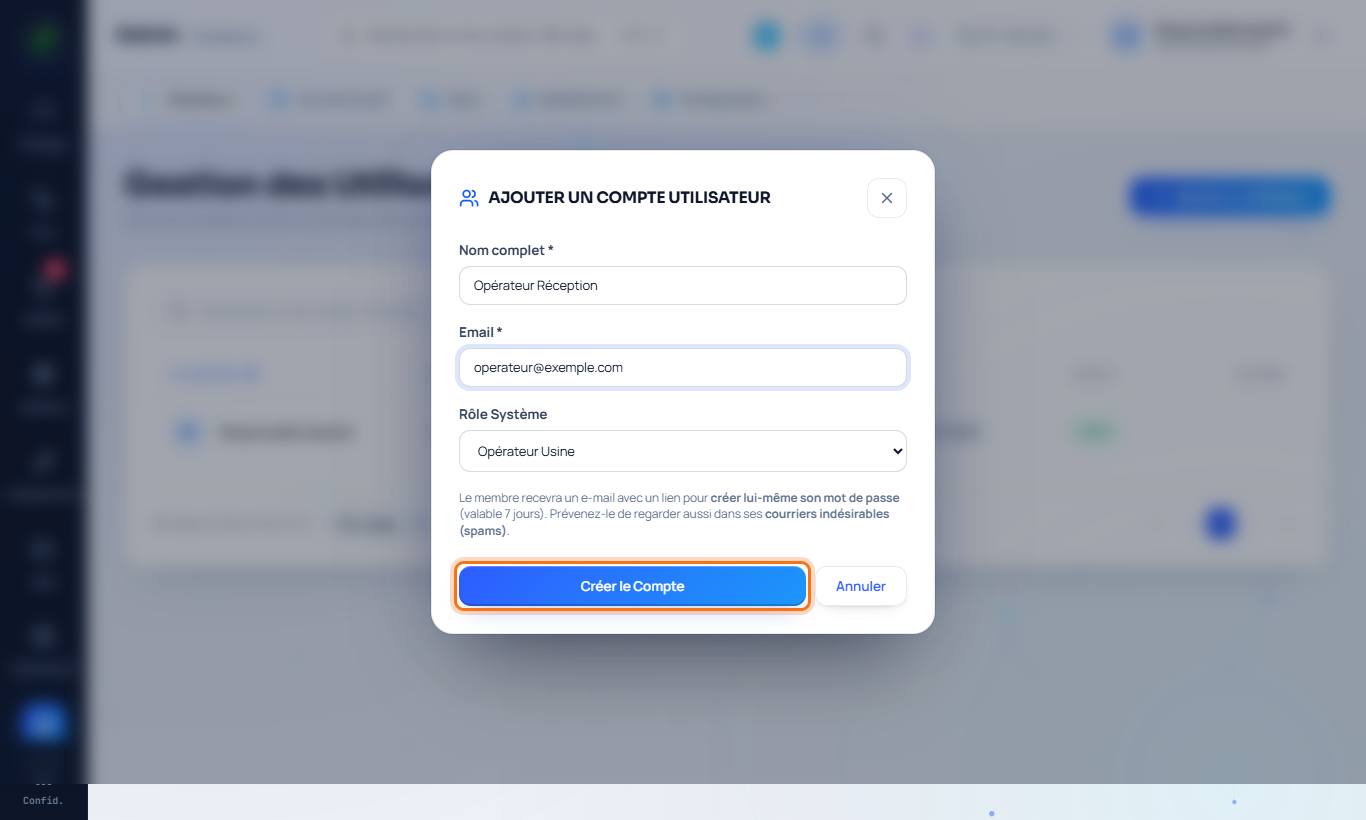
3. Understand the roles
Each role grants specific rights: an Operator enters receptions and production, a Quality inspector the checks, a Quality manager approves documents and decides on non-conformities, an Auditor can view without changing anything. The administrator has every right.
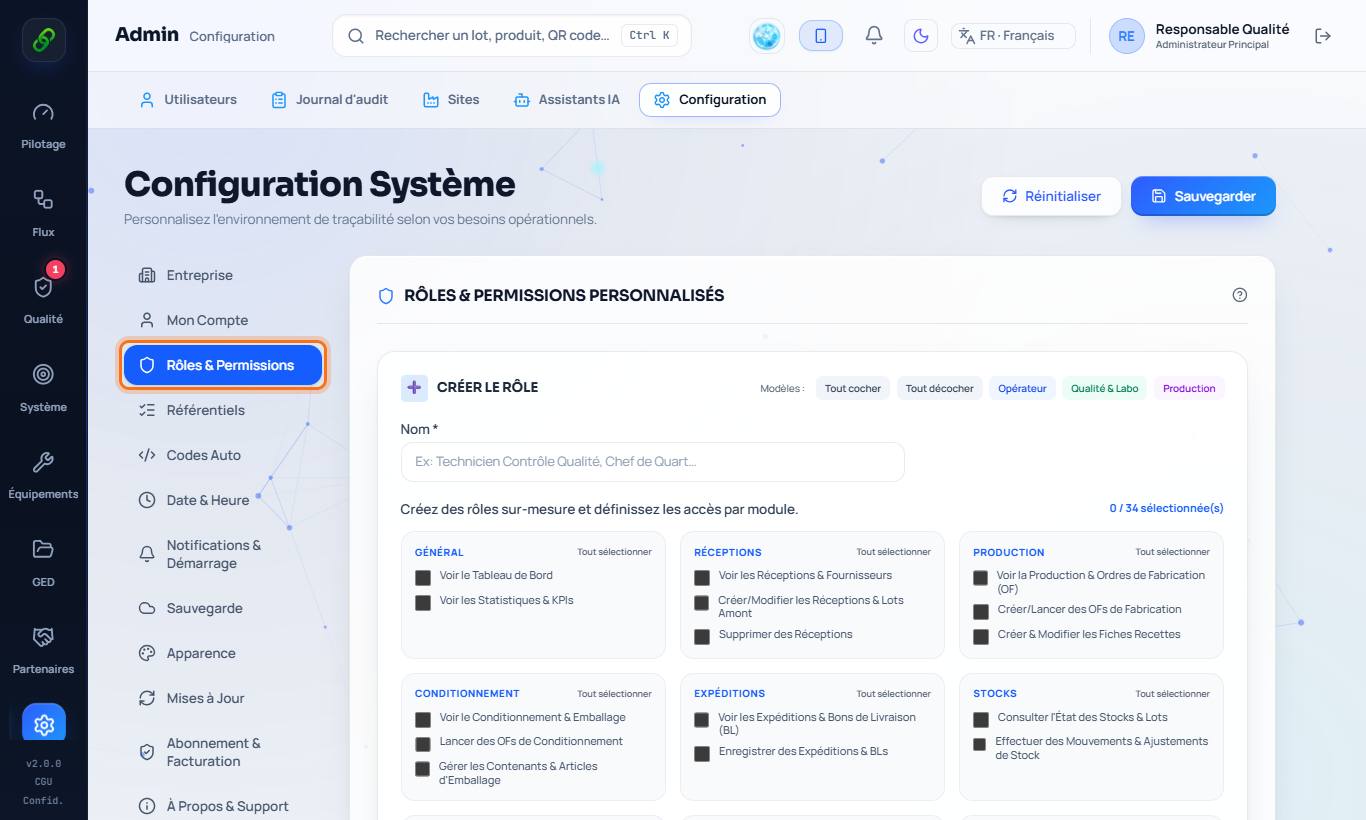
4. Customise permissions
Settings › Roles & Permissions: create a custom role and tick the rights (read, write, approve…) module by module, including Staff, HR records (confidential), Equipment, Quality system, Complaints, Batch release and AI assistants.
5. Individual access without creating a role
Admin › Users › a person's record › Grant access: tick the extra sections they can view or edit (edit includes view). Their role does not change. Deleting data and changing settings remain reserved to administrators.
6. Delegate account management
A user with the Add / edit user accounts right can create, edit and disable accounts. They can never edit or delete an administrator account.
Good to know
- The number of accounts depends on your plan (see Pricing).
- HR records are confidential: only people with the "HR records" right can see them, including on other synced devices.