Electronic signature
Documentation · Documents and signature
Have a document reviewed and approved through a secure signature workflow (password + code), with a verification QR code on the PDF.
1. Before you start
Three prerequisites: 1. the managing director is filled in under Settings › Company. 2. Each signatory has their own account (Admin › Users) with a valid email address, where they receive their code. 3. The computer is connected to the Internet. Finish writing before starting the workflow: any later change invalidates the signatures.
2. Start a workflow
A document only appears To sign once its workflow has started. Documents › Signatures › To start tab: every library draft without a workflow (or whose last workflow was refused, invalidated or cancelled) is listed. Click Start workflow, choose the people for drafting, review and approval (mandatory), then Start workflow. Each person is notified by email and finds the document in their To sign tab, in step order. The same button exists in the document preview (Electronic signatures box).
3. Sign
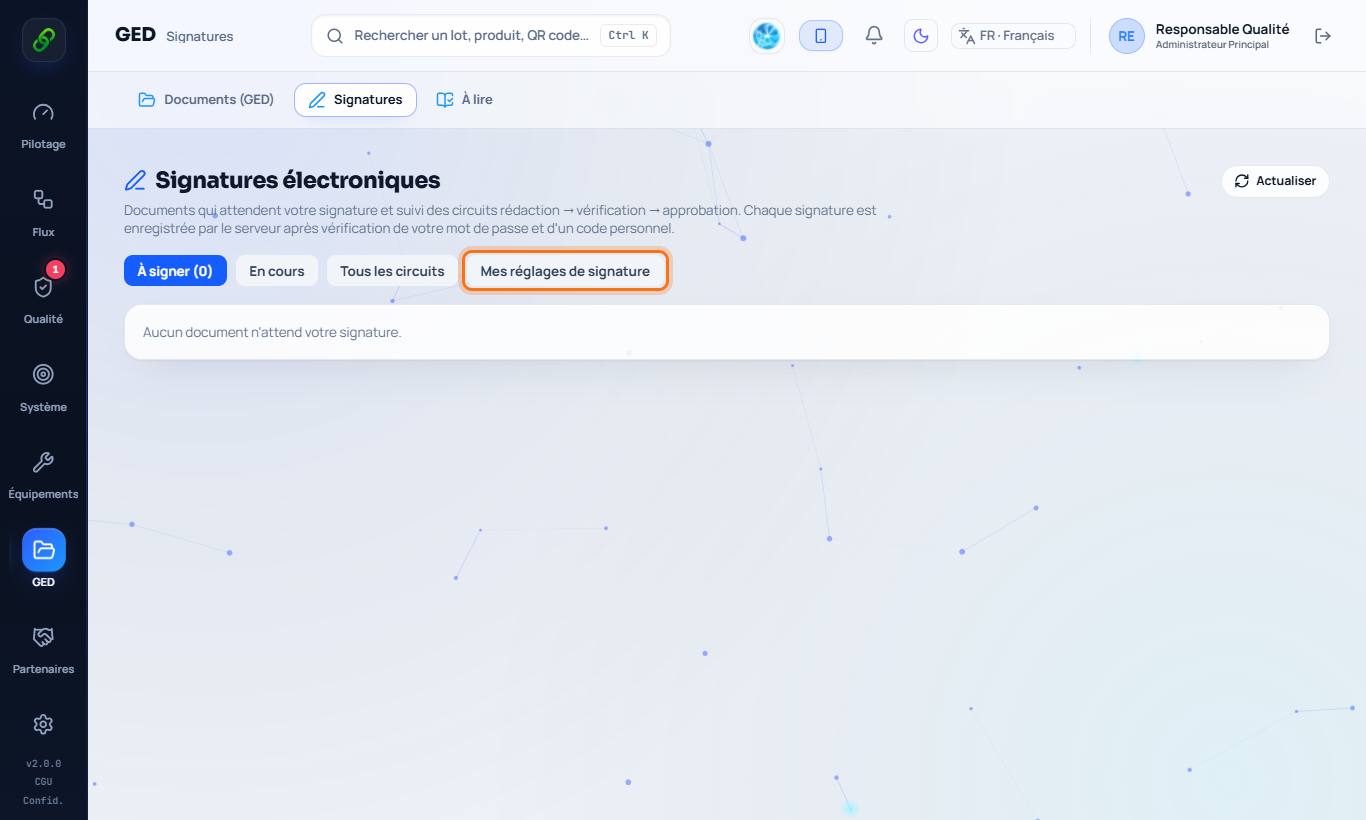
Documents › Signatures › To sign tab: the documents waiting for your signature. In progress and All workflows let you follow progress. To sign, enter your password and the code received by email (or from your authenticator app). You can also refuse with a reason.
4. Security
Nobody can sign on someone else's behalf. If the document is changed after signing, the signatures become invalid. Each signature can be verified with the QR code printed on the PDF. My signature settings: authenticator app and delegations.