First steps: install, sign in, find your way
Documentation · Getting started
Install TraceFlow Chain, create the company account, sign in and understand how the screen is organised into workspaces.
1. Install the software
Download TraceFlow Chain from the Download page: Microsoft Store for Windows (recommended, automatic updates), .dmg file for macOS; for Linux, Snap Store (sudo snap install traceflow-chain), APT repository with automatic updates, AppImage or .deb; APK for Android. The trial version is free.
2. Create your company account
On first launch, choose Create an account: name, email address, password and company name. A verification code is sent to you by email. Accept the terms of use and the privacy policy to finish. This first account is the company administrator.
3. Sign in
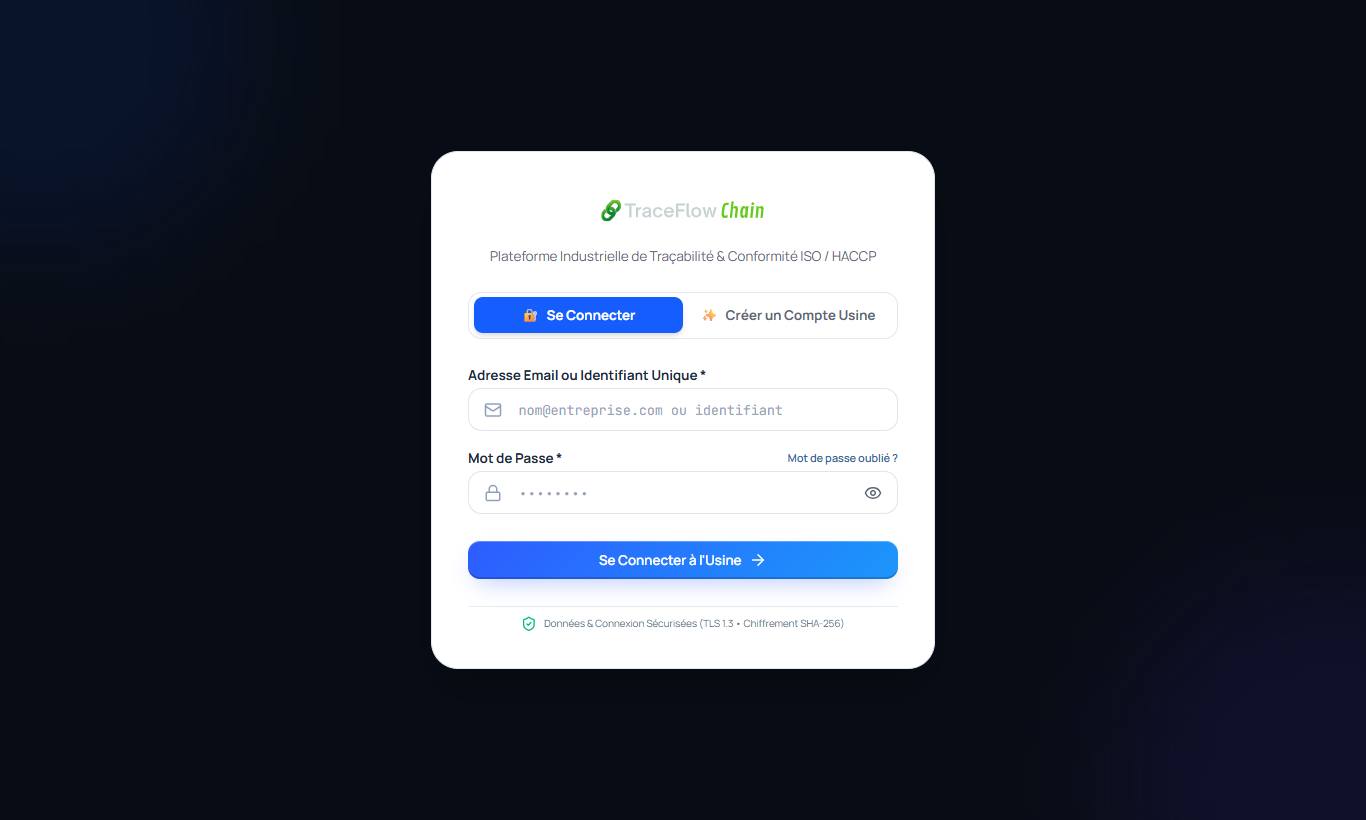
Enter your email address (or username) and your password. If two-factor authentication is enabled, also enter the code you receive.
4. Find your way: the dashboard and workspaces
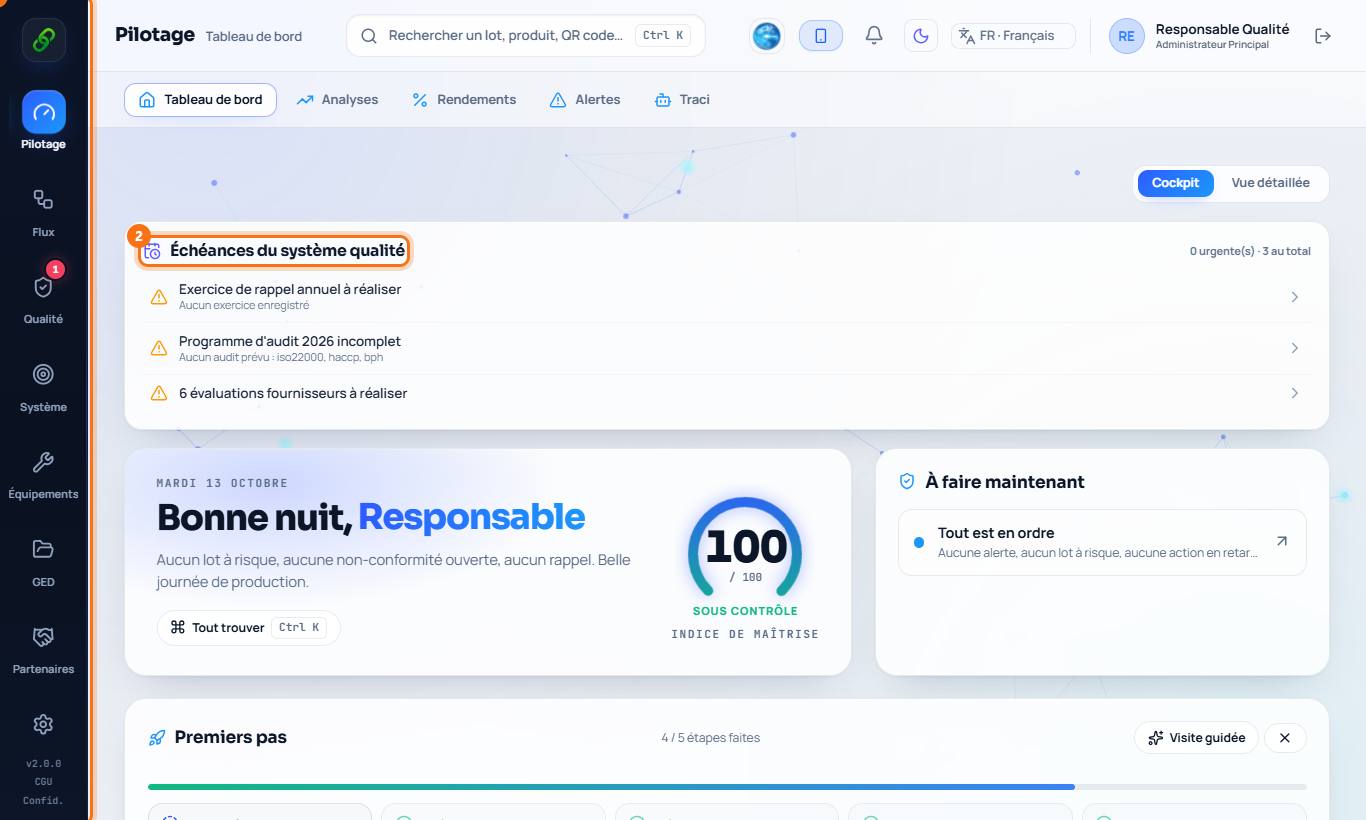
The home screen shows the day's indicators (receptions, stock, production, packaging, shipping) and the quality system deadlines. The left bar groups features into workspaces: Monitoring, Flows, Quality, System, Equipment, Documents, Partners and Admin. Click a workspace to see its screens.
5. Find a feature or a batch instantly
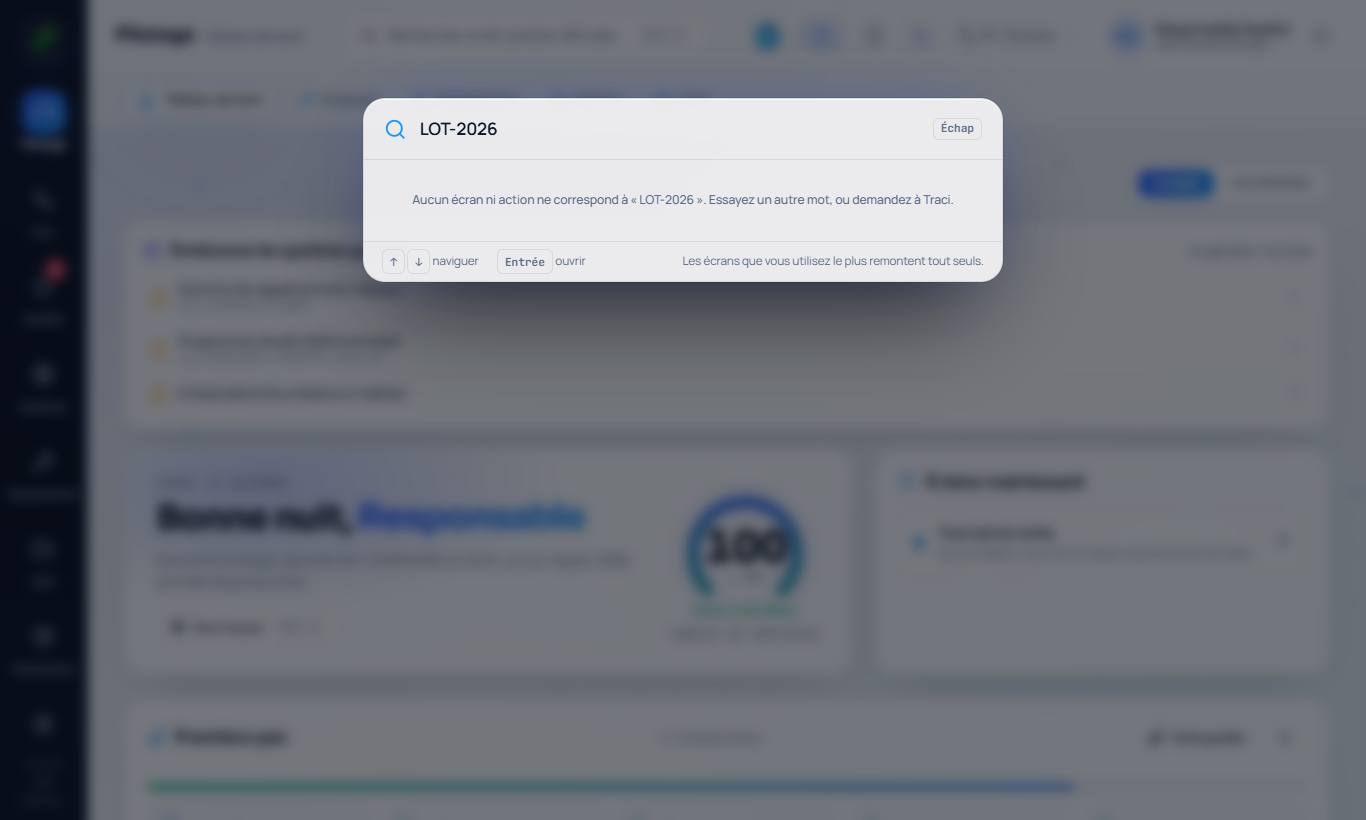
Press Ctrl + K (or click Find anything): type a batch number, a product, a customer or the name of a screen.
Good to know
- A guided tour is available from the dashboard to discover the software step by step.
- The software works without Internet: your entries are saved on the computer and synced when the network comes back (Cloud plans).