Set up the company
Documentation · Getting started
Fill in the company identity (name, logo, managing director who approves documents), choose the business sector and set the automatic codes.
1. Open the settings
Admin › Settings. The Company tab holds the company identity, used on all documents and reports.
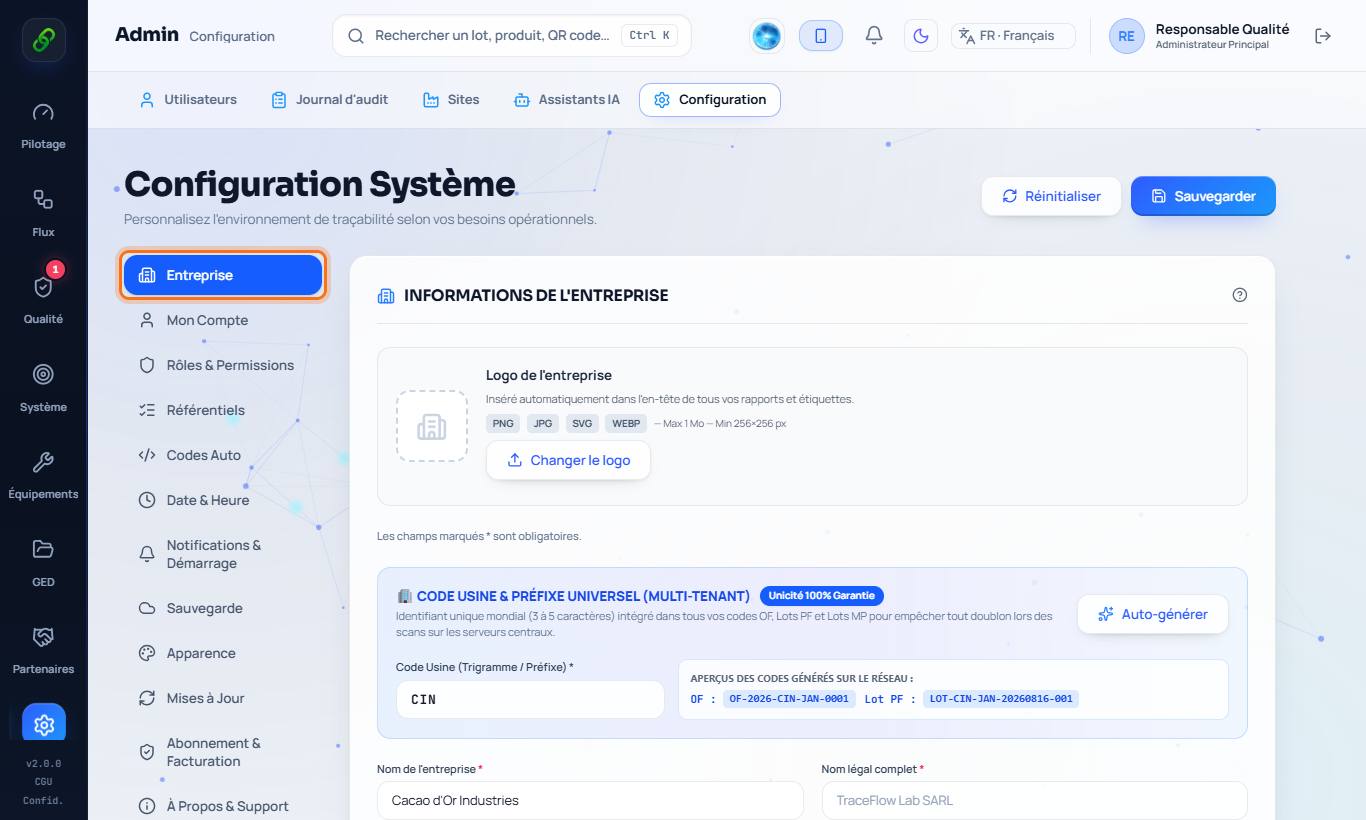
2. Fill in the identity and the director
Company name, address, logo (Change logo) and, above all, the Managing director who approves documents: their name appears in the signature blocks and the version history.
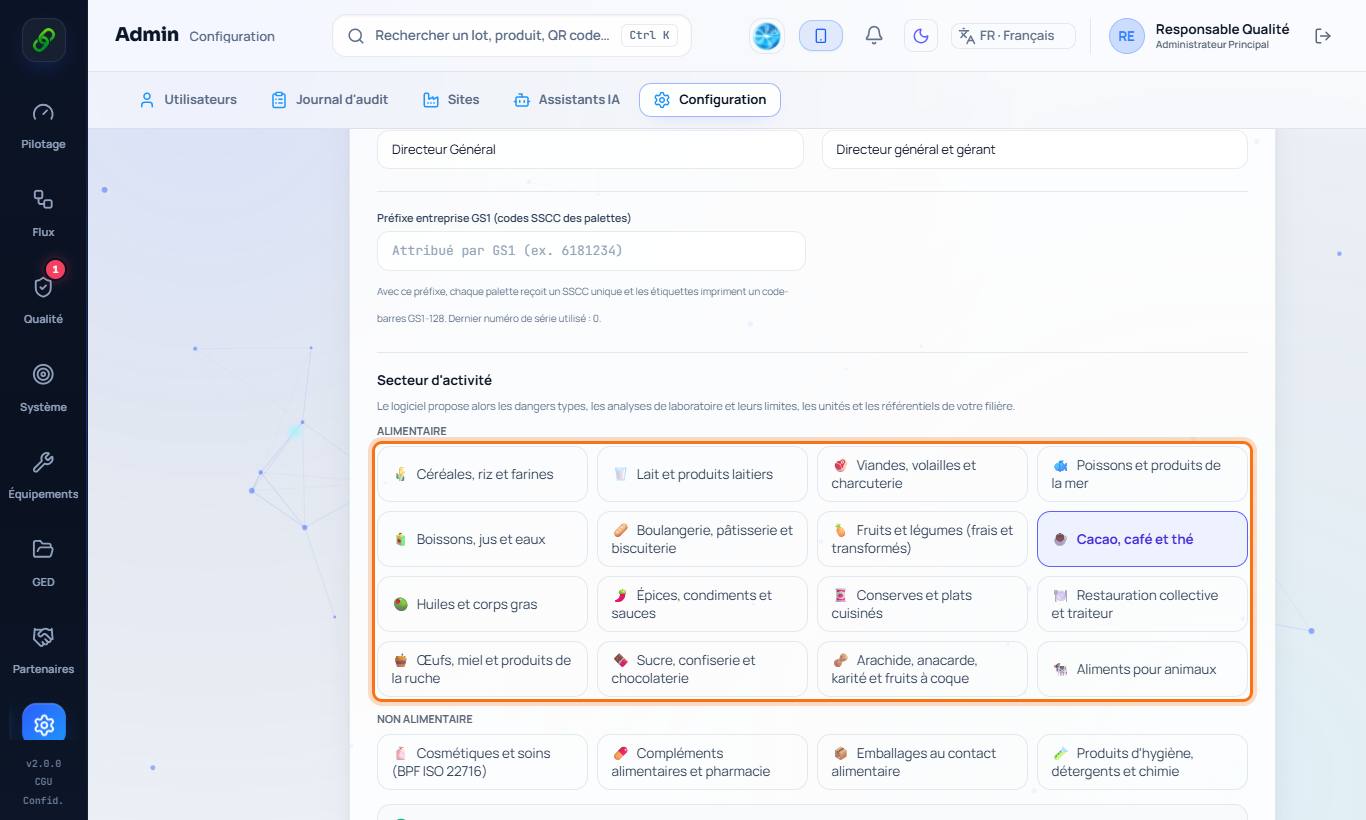
3. Choose the business sector
Choose your sector (cereals and rice, cocoa and coffee, dairy, meat, oils…). The software then adapts the hazards, the analyses offered in quality control, the co-products and by-products, and the suggested documents.
4. Set the automatic codes
The Auto codes tab defines the format of batch numbers, manufacturing orders, delivery notes, non-conformities and documents.
5. Save
Click Save. The settings are shared with the company's other workstations and phones.
Good to know
- The director's name is required so that approved documents show the right signatory.