Connect Claude, ChatGPT or Copilot (MCP)
Documentation · Monitoring and tools
Let an external AI assistant read your data and, if you allow it, work in every section of the software and revise library documents as drafts.
1. Open the AI assistants screen
Admin › AI assistants (MCP): two ways to connect an assistant.
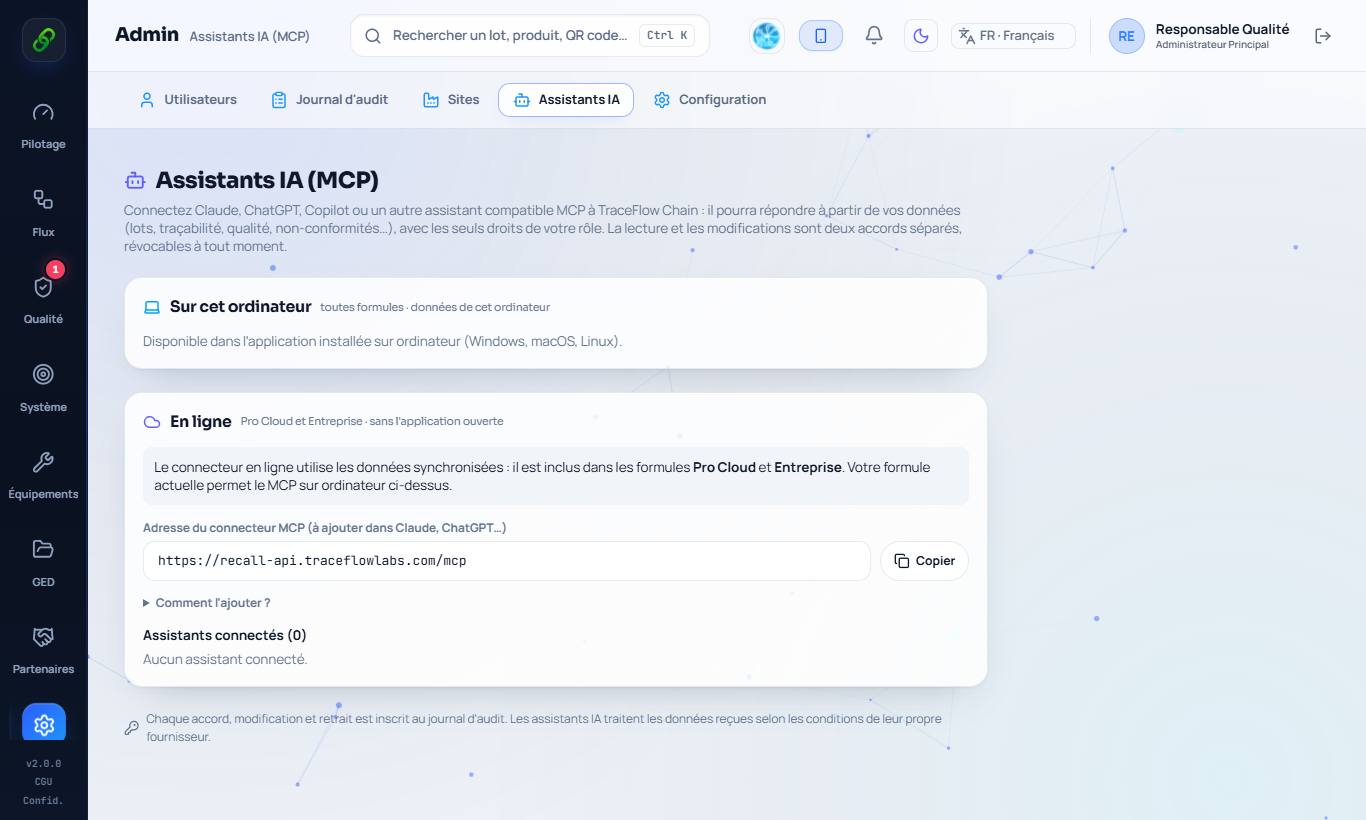
2. On this computer (all plans)
Tick the consent box, then Enable MCP on this computer. Copy the access key. For Claude Desktop, download the extension (.mcpb), open it and paste the key. For VS Code, Cursor and other MCP clients, use the address http://127.0.0.1:47830/mcp and the key. TraceFlow Chain must stay open.
3. Online (Pro Cloud and Enterprise)
In Claude: Settings › Connectors › Add custom connector, address https://recall-api.traceflowlabs.com/mcp. In ChatGPT: Settings › Apps and connectors. Sign in with your TraceFlow account, enter the code received by email and choose read only or read and edit.
4. What the assistant can do
With read and edit consent, the assistant reads, creates and edits records in every section your role can edit: suppliers, customers, items, recipes, checks, non-conformities, staff, training, badges, equipment, maintenance, audits, risks, HACCP… It also revises every library document (procedures, HACCP plans, PRPs, hygiene plan, manual): each change opens a new draft version, later approved by a person.
5. Changes and security
Changes are disabled by default. On the computer, every change is asked for on screen. An assistant can never delete, approve or sign a document, or change a stock quantity. Every change is written to the audit log. Connected assistants are listed in Admin › AI assistants, where access can be removed at any time.